Operation Manager
Operation Manager is a separate, browser-based tool for managing an operation's ownership, password and protections. Unlike Karttahimmeli itself, it doesn't show a map or any markings — it's purely an administration tool for the operation's leadership.
How do I open it?
Open Operation Manager from the person icon next to Karttahimmeli's operation identifier field. It opens in a new browser tab. Signing in requires a Google account.
Signing in
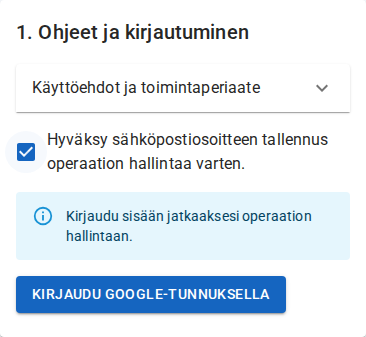
The first page accepts the terms of use and signs you in with your Google account. Sign-in identifies you by your email address — the same address is used later to verify ownership.
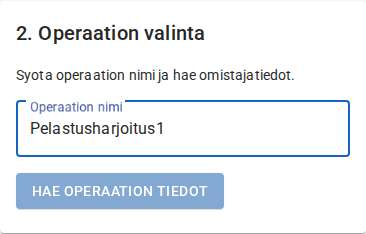
Selecting the operation
Enter the identifier of the operation you want to manage and fetch its details. If the operation already has a password, you'll be asked for it at this point.
Once fetched, the operation overview and the ownership management section appear.
Taking ownership
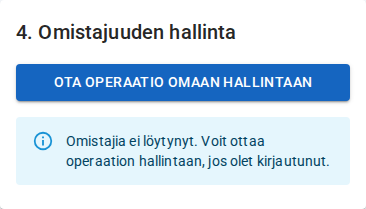
If the operation doesn't have an owner yet, a Take ownership of this operation button appears. Any signed-in user can take ownership — which is exactly why it's worth doing as soon as possible after an operation is created.
Protection on by default when you take ownership
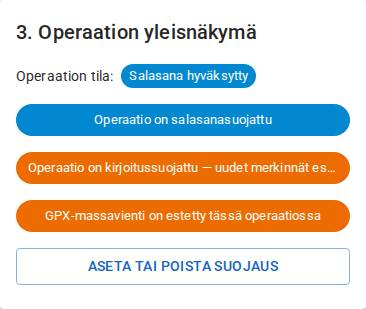
Taking ownership automatically disables bulk GPX export — shown immediately as an amber marker in the overview. This stops anyone who joined the operation before ownership was claimed from exporting its markings as GPX in bulk. You can turn this back off if needed from the password and protection dialog.
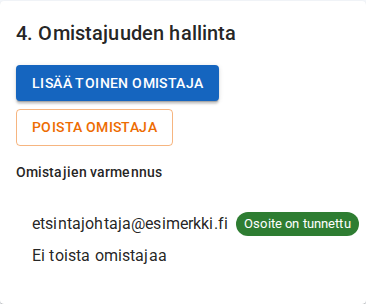
After taking ownership, you'll see your own email address in the owner list, along with the option to add or remove a second owner and manage the password and protections.
Adding a second owner
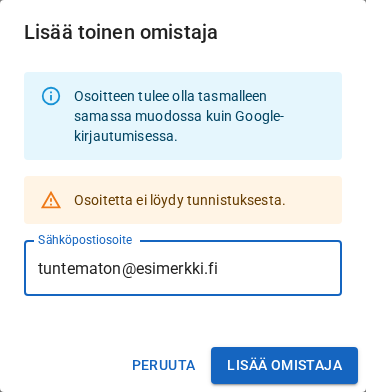
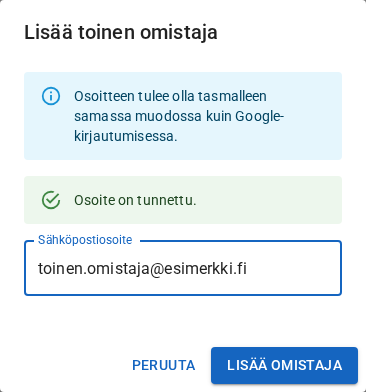
An operation can have two owners. Add a second owner opens a form where you enter the invitee's Google email address, in exactly the same format they use to sign in.
Once you type the address, the tool automatically checks whether it's known:
Double-check the address
A "known" result only confirms the address exists as a Google account — not that it belongs to the right person. Always verify the address through another channel (e.g. phone) before sharing ownership.
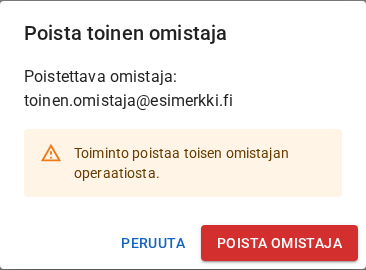
The second owner can later be removed with Remove owner.
Password and protections
Set or remove protection opens a dialog that manages three independent protections at once:
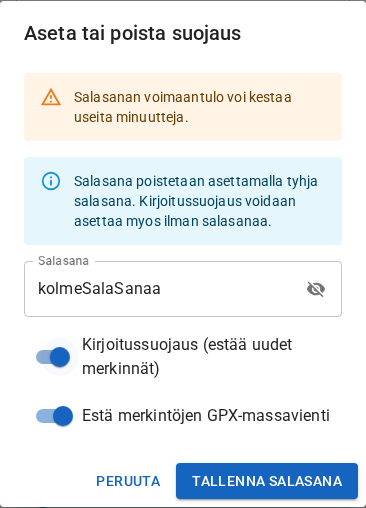
- Password — see Password protection. The password is shown here in plain text by default (not masked), since you're typing a brand-new one — the eye icon can hide it if needed.
- Write protection — see Write protection. Blocks new markings from being added.
- Disable bulk GPX export of entries — blocks bulk export of observations, areas and plans as GPX. Normal GPX export of a single item is unaffected.
All three can be set independently of a password, and are saved together with Save password. Changes may take a few minutes to take effect.
Once all three protections are enabled, they each show up in the overview:
Only an owner can change protections
If you're not an owner of the operation, the buttons are greyed out and you can't change the password or protections. Any signed-in user can take ownership if the operation doesn't have one yet.