Operations
What is an operation?
In Karttahimmeli, operation is an identifier that binds all entries of one search or mission together. It is like a closed "map deck" that all search teams of the same mission join.
Search Teams in different operations do not see each other's entries, even if they use same system.
Operation ID
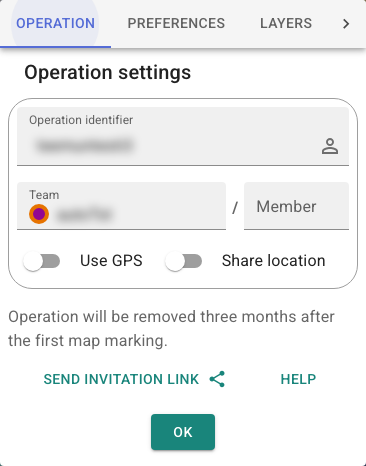
Operation ID is free-form text used to identify operation. When everyone uses same ID, they see same map with same entries.
Writing operation ID:
- Upper/lower case are equal (
SEARCH=search) - Spaces and punctuation are ignored (
Search 1=search1) - Only letters and numbers are considered
This means ID is usually interpreted correctly even if written by hand on board or told by phone with minor formatting differences. However, make sure you've joined the right operation. If the operation looks completely empty, it's worth double-checking the operation ID.
Choose ID carefully
Avoid easily guessed IDs such as date or city plus task type
(search-tampere). Karttahimmeli has been visible in media, so
outsiders may try to guess operation IDs.
Good ID: two random words, or word + non-date number.
Use punctuation if you like, so letters and numbers don't run together.
E.g. Aarni-10-otso is clearer than Aarni10otso (both forms refer to
the same operation!)
Creating an operation
Operation does not need separate setup. Type operation ID in field and join. If operation does not exist yet, it is created automatically when the first marking or shared location is saved.
Who can create operation?
Anyone can create operation by typing ID. There is no strict hierarchy, which enables quick startup as the incident organisation forms organically.
In real incidents, still check first with command whether operation already exists and what official ID is. Someone may have already started planning under some operation name.
Sharing operation ID
Most common method is writing ID visibly at check-in point. ID can also be shared as:
- QR code (printed or shown on screen)
- Link (sent by message)
- Phone call (dictated)
Because letter case is ignored, dictated ID works even if listener types it with different case style.
Tip for command staff
QR code is easy to print to A4: open operation in browser and press Ctrl+P. Printable view includes both text ID and QR code.
You can also just show the QR code from your device.
Operation ownership
See also the tool guide: Operation Manager.
Advanced: ownership
Operation owner manages operation settings, such as password and other owners. If password is set, only users with password can join.
Ownership is managed via person icon next to operation ID field. Sign-in requires Google account.
In real operation, command level should take ownership as early as possible. This prevents accidental ownership or password setting by individual searcher.
Benefits of ownership:
- Prevents outsiders from setting operation password
- Allows adding password protection later
- In a password-protected operation, route history — and therefore Replay too — is visible 90 days back (without password 7 days)
- The operation can be write-protected, after which changes and additions are no longer accepted
Operation password protection
Password protection is needed if outsiders are suspected in operation. After setting password, already joined users without password are automatically removed from operation.
Shared password for trainings
In association trainings, you can pre-agree one shared password used in all trainings. This way, route history can still be reviewed in operations older than a week.
Operation write protection
Recommendation: write-protect old operations
Once an operation (mission or training) has ended, it's recommended to enable write protection. Everything recorded so far — markings, routes, and Replay — stays fully visible and browsable, but nothing new can be added by accident.
Write protection is set from the same place as password and ownership: the operation management view opened via the person icon next to the operation ID field.
In a write-protected operation:
- No new observations or drawings can be added
- Location sharing stops automatically and cannot be turned back on
- Connecting a tracker to the operation is blocked (checking status and stopping tracking still work)
Write protection does not extend the route history retention period — that is still determined only by when the first marking was saved.
Operation data retention
All data stored in the operation — markings, drawings, route history, and shared locations — is automatically deleted 90 days after the first marking or shared location is saved to the operation. The retention period applies to the whole operation and cannot be extended with a password or write protection.
When you join an operation that already has markings, you'll see the exact deletion date in the Operation settings view. If the operation hasn't been used yet, the view shows only a general retention notice — the exact date is calculated once the first marking or location is saved.
Data cannot be deleted early, and deletion cannot be sped up
You cannot manually delete the operation's data ahead of time, and the 90-day deadline cannot be shortened. If sensitive data has been shared in the operation, take operation ownership and set a password as soon as possible — this stops anyone who doesn't know the password from joining the operation going forward (those with the correct password can still join), even though data already shared cannot be hidden retroactively.
If you need the data for longer than 90 days, save it yourself before the deadline, e.g. by printing or exporting as GPX.