Settings
At the top of the Settings menu you will find several tabs. This page describes all settings on the Preferences tab.
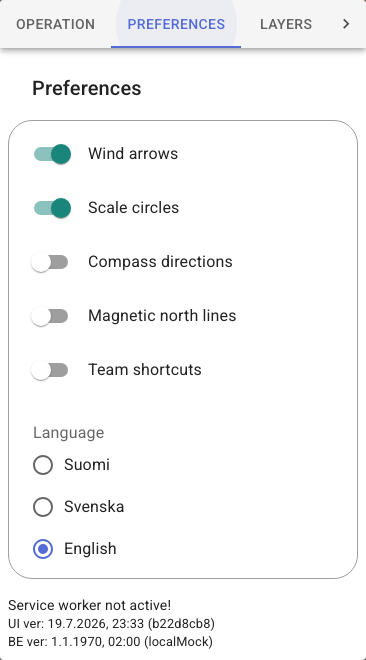
Scale Circles 
With the Scale Circles switch, you can choose whether to display the distance rings radiating from the centre of the map or not.
Wind Vanes 
With the Wind Vanes switch, you can choose whether to display wind vanes on the map or not. See Wind Data for the data sources and how to read the markers.
Compass North Lines 
With the Compass North Lines switch, you can choose whether to display compass north lines on the map or not. Compass north lines show the true magnetic north direction on the map.
Karttahimmeli uses the approximately 2 km × 2 km declination grid provided by the Finnish Meteorological Institute and the nearest defined declination angle.
Show Map on Locked Screen 
With the Show Map on Locked Screen switch, you can choose whether to display the map on the phone's lock screen or not.
Android and iPhone work differently
The switch and its three states are available on Android devices only. On iPhone, the screen is instead kept on constantly while the app is open, and the switch has no effect on this.
The switch has three positions:
| Position | Behaviour |
|---|---|
| Off | Karttahimmeli is not displayed if the phone screen is locked. |
| Auto | Karttahimmeli is displayed on the locked screen IF location sharing is active. |
| On | Karttahimmeli is always displayed even if the phone screen is locked. |
This feature makes it easier to use the map, as you do not need to unlock the phone repeatedly to view the map.
Team Shortcuts 

The Team Shortcuts switch enables quick-access buttons that appear along the right edge of the map. Each active team gets its own button — clicking it instantly centres the map on that team's location.
The buttons update automatically based on which teams have been active within the selected tail length window.
Grouping multi-member teams
When a team ID uses two parts (Dog-03/tk, Dog-03/ah), all members of the same team are grouped under a single button. Clicking the button centres the map on the average position of all team members.
Language Selection 
You can choose the language of the application's interface and annotations. If you think there are term errors in the translations, please provide feedback!
The language selection also affects the abbreviations and texts of the annotations. For example, "IR, Ilmareaktio" appears in English as "AS, Air Scent" and in Swedish as "LV, Luftvittring".