Layers
Layers are separate "containers" inside operation where markings, areas, and plans can be stored. By default everything goes to default layer, visible to all users.
Layers are an advanced feature
Layers are not required in normal search operations. In basic operation, default layer is enough. Consider layers only when basic usage is already familiar.
Layers are not intended for separating patrols
The layers feature is NOT intended for separating and hiding search teams' work from each other.
Why use layers?
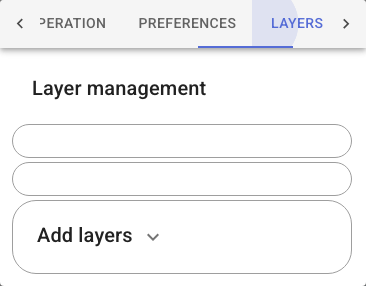
Layers allow for example:
- Planning layer: command prepares next phase plans in separate password-protected layer. Plans are published to search teams at right time.
- Training layer: role players in exercise share location on own layer that participants cannot access.
Creating a layer
- Open Layers menu
- Enter layer name
- Set password (or leave empty for open layer)
- Create layer
Creating layer does not activate it automatically
After creating layer, you must activate it separately by entering password again into "Enable layer" field. Otherwise new entries still go to default layer.
Layer name and password cannot be changed after creation.
An open layer (no password) shows with a green dot in the layer list when active, red when inactive. A password-protected layer shows with a "no entry" symbol until unlocked with the correct password.
If multiple layers share the same password, they all open at once. This applies to open layers too: submitting an empty password opens all open layers at once.
Creating entries on a layer
When multiple layers are in use, plus button asks which layer entry is saved to. If you want to save into specific layer, first verify that layer is selected as default for new entries.
Default layer for new entries can be set in the observation type selection dialog.
Layer selection is also available when importing GPX files.
Location sharing locks permanently to a layer
Choose the layer in operation settings before you start sharing location.
Once a team's ID starts sharing location on a layer, that ID is locked to that layer for the rest of the operation. Stopping and restarting location sharing does not free it up — the same ID locks back onto the same layer.
To share location on a different layer, change the team name or the member part of the ID — a different ID is free to pick any layer.
This is also why one team/member ID can never appear on more than one layer within the same operation: the lock ties an ID to exactly one layer.
Password-protected layer
In password-protected layer, entries and locations are visible only to users with password. User without password sees layer name but not contents.
Password-protected content is shown on map with orange border.
Open layers
Anyone in operation can join open layer (no password) by submitting empty password. This opens all open layers at once. Open layers can be used to separate search team plans without secrecy.
Hiding layers
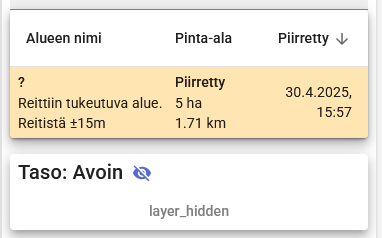
Layers can be hidden or shown one by one from list. Hiding is useful when map becomes cluttered with content from many layers. You can also filter the observation log by layer, to narrow the view down to one layer's entries.
A layer can also be fully removed from use on your device by clicking the X next to the layer name — to re-enable it you must enter the password again (or click the layer name for an open layer).
Training scenario with layers
Training organizer can create secret planning layer for exercise tasks or scenario items to be found. Participants see only default layer, so scenario stays hidden until organizer decides to reveal it.