Navigation
Map centring
For field use, the map can be set to automatically follow your location. Own location display is activated from the own location switch. When enabled, the centre button has three modes:
- Free mode (default) – map can move freely, own location shown as dot
- Centring mode – map follows own location automatically; map cannot pan but can rotate
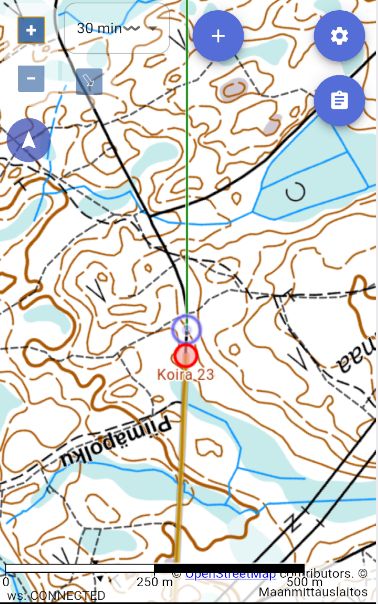
- Navigation mode – map rotates automatically by travel direction and own location is shown in lower third


Using navigation mode
In navigation mode map rotates using compass or GPS heading. When standing still it uses compass, while moving it uses GPS heading. Exit by pressing button third time.
North lines and overlays
From the Preferences menu you can enable:
- Compass north lines – help navigate with a hand compass
- Cardinal directions – shows compass directions on the map
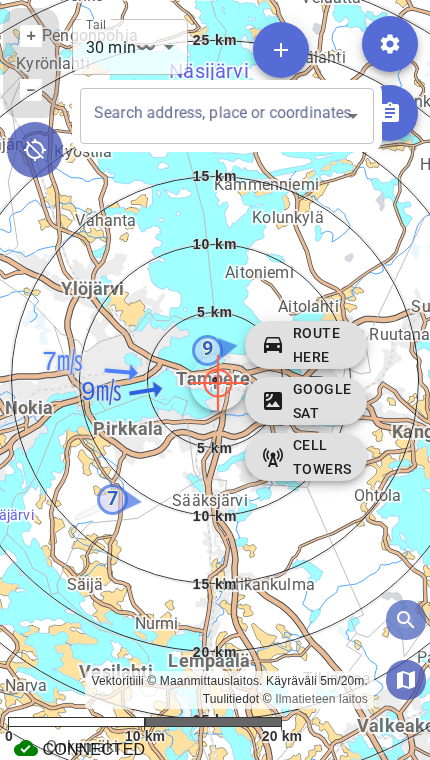
- Scale circles – shows the map scale
- Compass active – shows the device compass heading on the map
- Wind vanes – shows wind data from nearby stations on the map
Navigation to Search Result or Map Centre
When the search function is active, you can click the target in the middle. This will bring up a navigation button that allows you to command Google Maps to navigate to the location. However, check where Google is directing you! If there is no road to the location, the route may be impractical.