Additional instructions for the Android app
You can purchase the app install from the
Play Store  For the price of a cup of coffee you get convenience and support Karttahimmeli's development.
Updating
The Play Store app updates automatically, unless you have disabled automatic updates. Please check your settings.
Karttahimmeli's web app part updates automatically from the app on startup. Note: the app must be closed/killed for the web app update to happen. If you only leave the app with, for example, the back or home button, Karttahimmeli does not die. To be sure you get the latest web app version, it's worth closing it twice: start Karttahimmeli App, close it, open again, close and open once more.
Sending location to the operation
The app enables location sharing even while the screen is off. With a good GPS signal, location is sent about every 10s. With a poor GPS signal, positioning happens about once a minute. While stationary, location sending is throttled to about once a minute.
If the network connection has temporary problems, locations left in the queue are sent along with the next successful location transmission. The tail and the dot on the map only update once location sending has succeeded. So you see the same situation as everyone else. If your own dot doesn't move, others don't see it moving either.
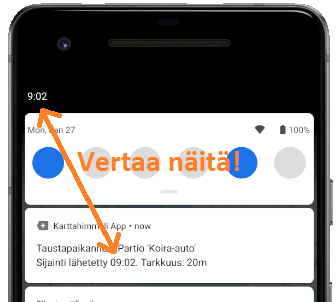
While location sharing is on, the app shows a notification displaying the
team name, the time of the latest location send attempt, and the estimated
positioning accuracy. Location sharing does not stop even if you close the
app — it must be switched off from within the app.
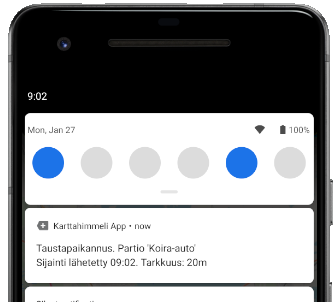
Background location sharing works for a maximum of four hours after the map was last viewed. The assumption is that the map is glanced at every now and then, so the four-hour limit should not normally come up in practice, but it prevents location sharing from being left on for several days after the operation is over, unnoticed.
Battery saving settings
Background location sharing may not work if the phone's power-saving mode is on. The phone then starts restricting both network access and GPS use in the background. For example, on a Samsung S10, the optimized level is fine, but medium power saving is not. If location sending and route tracking in the background stop working, try adjusting the power-saving settings.
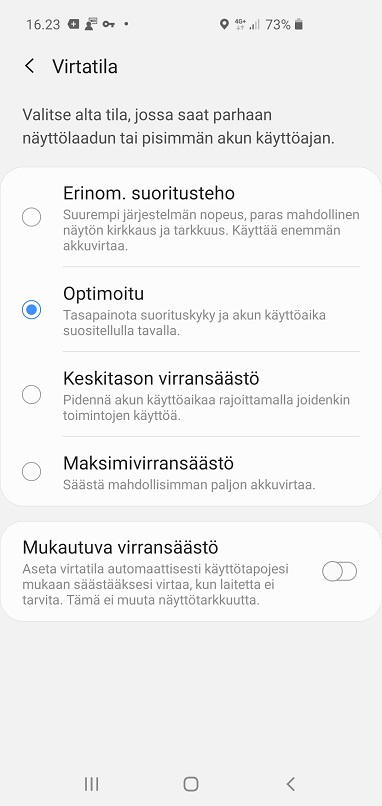
The safest option is to disable power saving entirely while using background location sharing. On the other hand, it's worth turning off "Synkronointi" (syncing of email and backups) for the duration of the operation. It's also worth turning screen brightness down to minimum, to save battery.
Auto-brightness uses a lot of power outdoors
Don't use auto-brightness during an operation. Bright sunlight forces auto-brightness to its maximum, which drains the battery at almost twice the rate compared to a manual minimum level. Also when moving in the dark with a headlamp, a manual minimum brightness is plenty and saves significant battery.
Note! On some phones, GPS use starts being restricted once battery drops below 15%. This may show up as reduced positioning accuracy. It's good to carry a power bank.
Android 11 (Samsung)
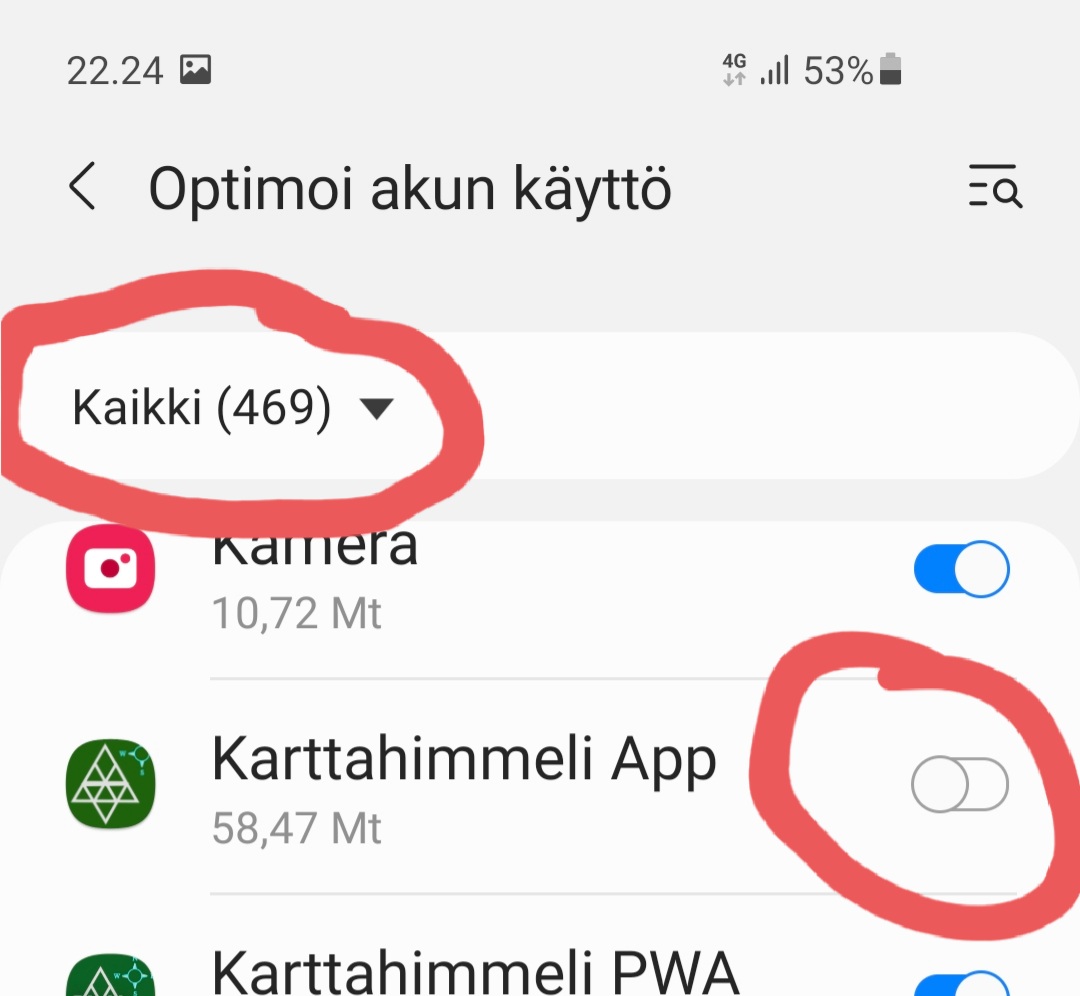
Android 11 once again changed how power-saving settings work. On Samsung, "Optimoi akun käyttö" means that an app running in the background is blocked from using the network and location after some time. You can disable this optimization as follows:
-
Go to Asetukset - Sovellukset (Settings - Apps)
-
Select Karttahimmeli to open the app info
-
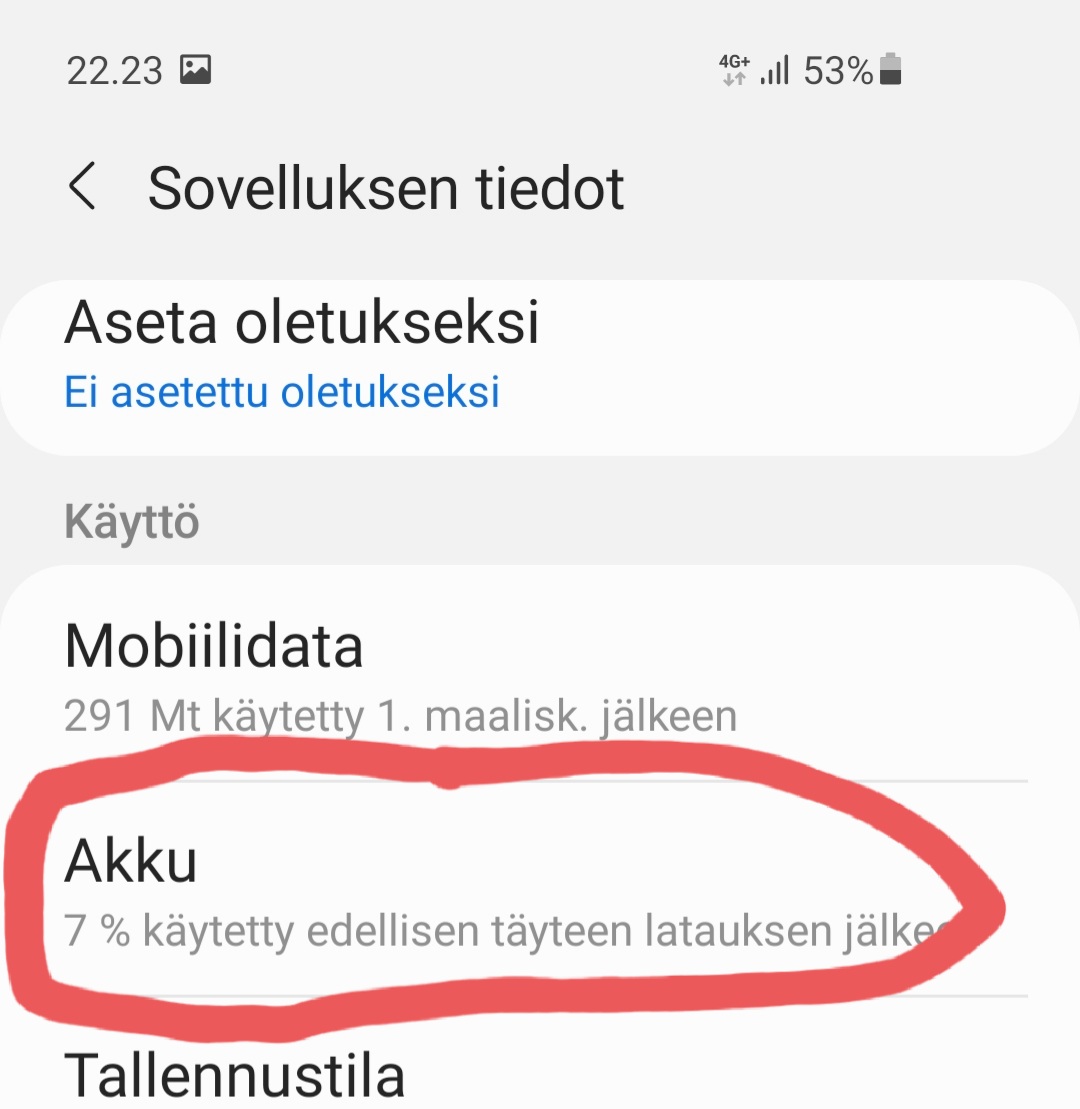
Tap "Akku" (Battery)
 {:
style="height:150px;width:150px"}
{:
style="height:150px;width:150px"} -
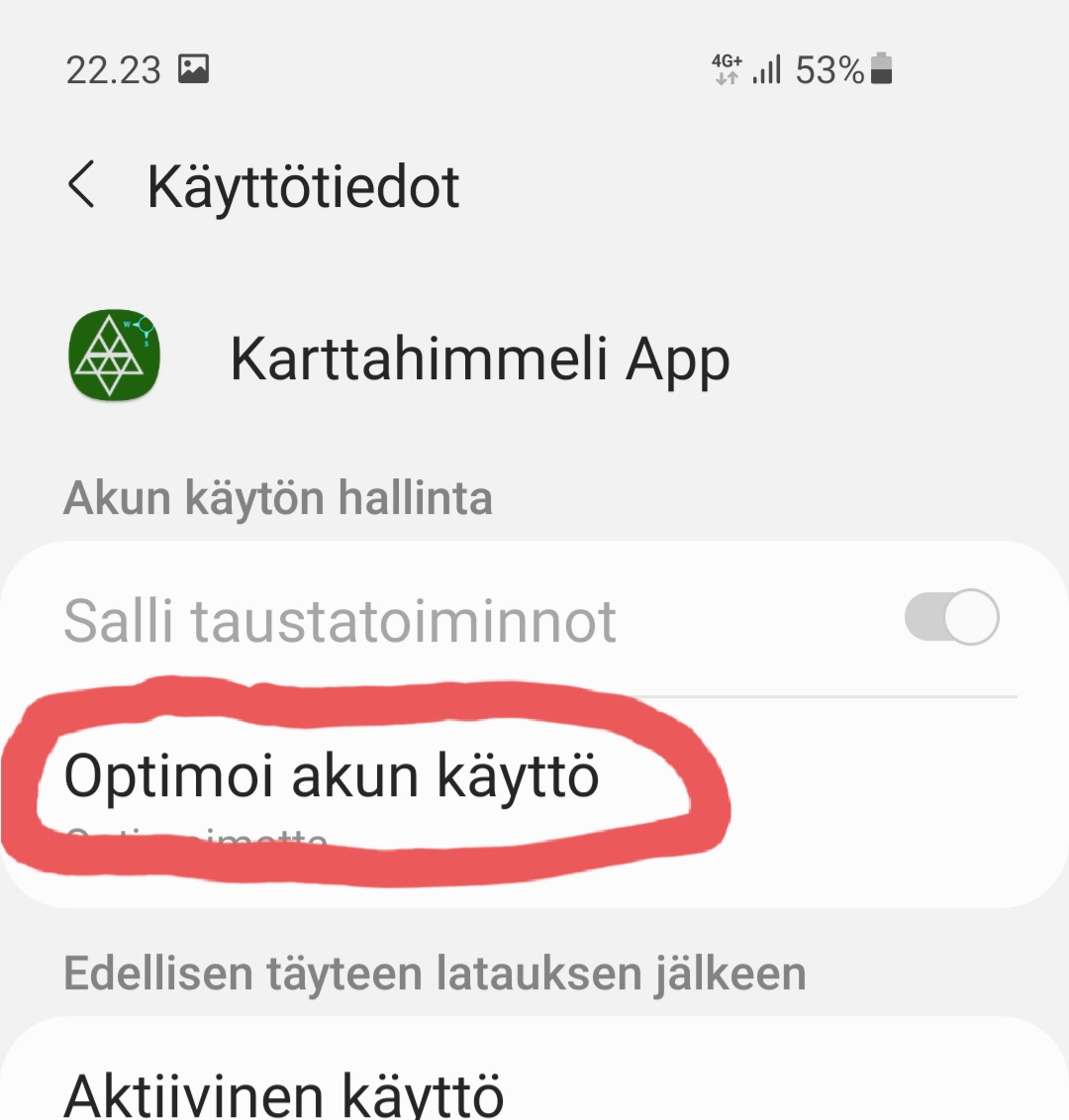
Tap "Optimoi akun käyttö" (Optimize battery usage)
 {:
style="height:150px;width:150px"}
{:
style="height:150px;width:150px"} -
Select "Kaikki" (All) at the top
 {:
style="height:150px;width:150px"}
{:
style="height:150px;width:150px"} -
Switch the toggle to off on the left
By checking the latest positioning time in the notification, you can tell whether background location sharing is working or not. This does not, however, tell you whether the location was also sent to the server.
Instructions for tweaking these settings can be found here
Motorola
Battery settings exist in at least two different places.
- Settings > Apps and Notifications > Advanced > Special app access > Battery Optimization
This will initially show you the apps which are Not Optimized - that is, the ones that can run in the background even while the phone is sleeping.
- Tap the blue bar at the top of the screen and switch the view to All apps
- Scroll down to the app you'd like to exclude i.e. Karttahimmeli, tap it, set it to Don't optimize
- Then tap Done.
or
- Go to your smartphone's Settings
- Tap "Battery"
- Tap on the menu in the top right corner
- Tap "Battery optimization"
- Tap "Not optimized"
- Tap "All Apps"
- Find Karttahimmeli on this list and tap on "Don't Optimize".
- Go back to your phone settings*
- Select "Battery"*
-
Turn Battery Saver Mode off*
-
When your Motorola reaches a low level of battery (15% by default, though you can customize it), the battery saver mode automatically starts and ignores the battery optimization setting you've chosen previously, so steps 8, 9, and 10 are advisable.