Address and Coordinate Search
In searches, the home address, former addresses, workplace, etc. of a missing person are often important places to check.
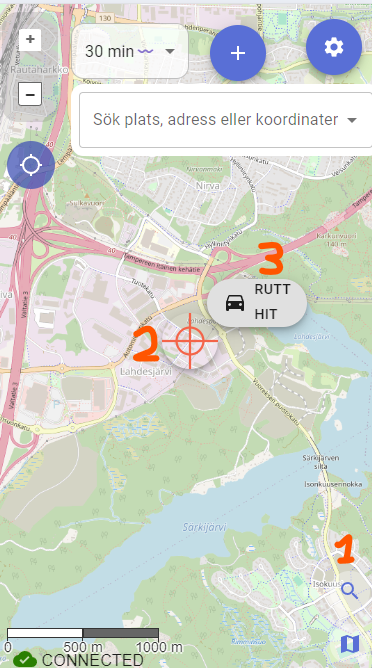
In the lower right corner above the map selector, there is a magnifying glass icon that enables address and coordinate search.
Address Search
The address search works by typing something into the search box, and Karttahimmeli queries the Digitraffic API to see if there is an address nearby that matches the search term.
Search for Nearest Addresses
With the reverse address search function, you can find the address of the nearest building, for example, to guide an ambulance to the location.
Leave the search field completely empty and press the results button on the right side of the field. Karttahimmeli will search for the official addresses closest to the center point of the map.
The source of address searches is Digitransit, which in turn gets building address data from the Digital and Population Data Services Agency.
Coordinate Search
You can enter coordinates in many different formats into the search field, and Karttahimmeli will try to make sense of them and suggest possible projections. Check the suggested information carefully!
At least the following formats work: - Geographic coordinates in degrees and decimal degrees - Geographic coordinates in degrees, minutes, and decimal minutes - Rectangular coordinate systems
By clicking on a suggestion, the map will center on the coordinates. You can add a marker to the location in the usual way with the plus button.
Logging Drone Observation Points via QR Code
Many drone controllers display the drone's current position or a point of interest as a QR code — which is actually a Google Maps link containing the coordinates.
Workflow:
- Scan the QR code on the drone controller screen with your phone.
- A Google Maps link opens showing the coordinates.
- Copy the link or just the coordinates and paste them into Karttahimmeli's search field.
- Karttahimmeli centres the map on the location — add a marker with the plus button and record your observation as usual.
This makes it quick and accurate to share drone findings with the rest of the team on the shared map, with no manual coordinate entry needed.
Navigation to Search Result or Map Center
When the search function is active, you can click the target in the middle. This will bring up a navigation button that allows you to command Google Maps to navigate to the location. However, check where Google is directing you! If there is no road to the location, the route may be impractical.