Printing Maps
The print function can be found behind the map selection button in the lower right corner. Printing is only available when using the browser version.
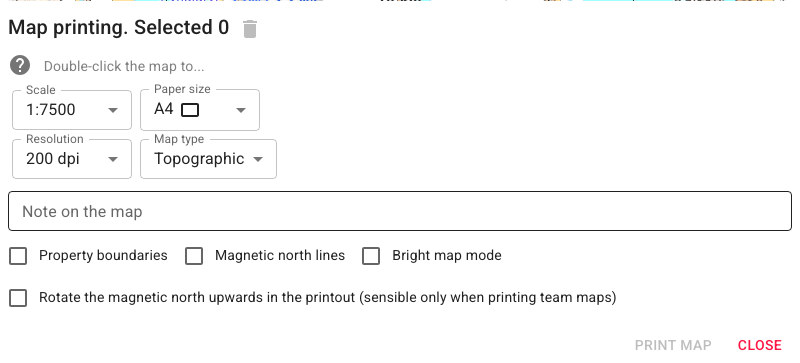
You can select which areas to print using filter functions to control which markings appear.
Map pages can be selected in two ways:
- Single click — free selection, centred on the clicked point. Use this to give individual map sheets to patrols.
- Double click — selects pages snapped to a fixed print grid. Use this when you want to tape the printed pieces together into a composite map.
To deselect a page, click it again. Clear all selections with the bin icon .
Exporting Maps to a Drone Controller
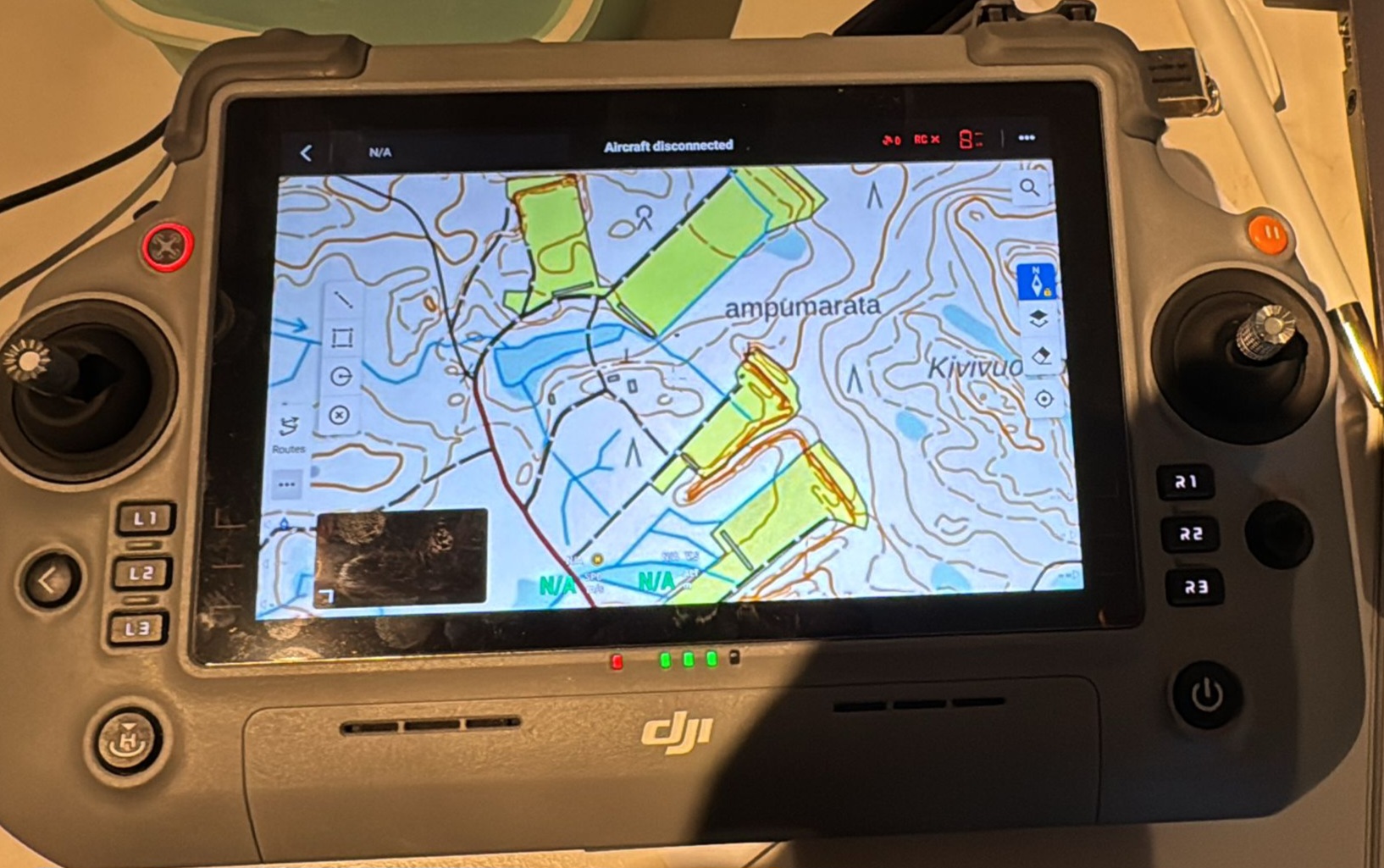
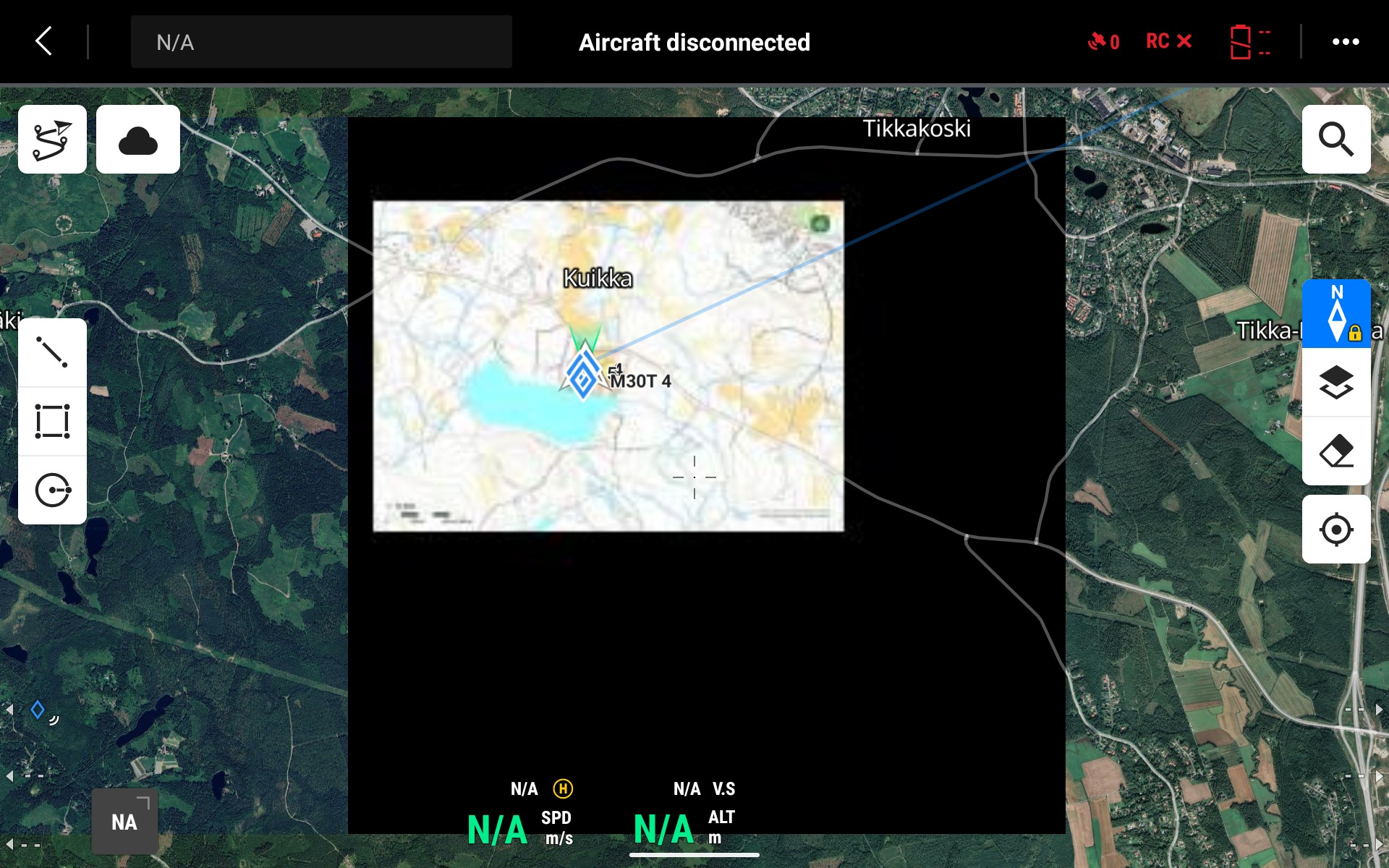
Karttahimmeli supports exporting maps in MBTiles format, which is an offline map format compatible with drone controllers. This allows you to load the operation area onto the drone controller in advance — even in areas with no network connectivity.
How it works:
- Select the desired area using the print tool as usual.
- Choose MBTiles as the export format.
- Transfer the downloaded file to the drone controller (e.g. DJI RC or similar).
- The controller uses the map offline during the flight.
The key benefit is that the drone controller displays exactly the same operational picture — including markings — as the rest of the team sees in Karttahimmeli. This improves shared situational awareness, especially in areas with poor or no mobile data coverage.
Logging Drone Observation Points Using the Search Function
Drone controller QR codes offer a convenient way to transfer coordinates directly into Karttahimmeli. Many controllers display the drone's location or an observation point as a QR code, which is essentially a Google Maps link containing coordinates.
Workflow:
- Scan the QR code shown on the drone controller screen with your phone.
- A Google Maps link opens, showing the coordinates.
- Copy the link or the coordinates directly into Karttahimmeli's search field.
- Karttahimmeli centres the view on the correct location — add a marker with the plus button and record the observation details as usual.
This is particularly useful in exercises where the goal is to practise transferring drone observation points to the team: a target found by the drone can be pinned on the shared map within seconds, with no manual coordinate entry required.