Observation Log and Filters
Observation log
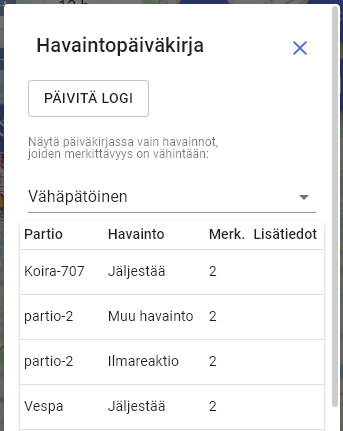
Observation log opens from notebook button on right side of map. It lists all operation entries and is especially useful at command post.
Log has four tabs:
| Tab | Content |
|---|---|
| Observations | Point entries |
| Patrols | Patrols sharing location |
| Areas | Operation areas |
| Other | Text entries, command post |
Clicking any entry moves map automatically to that location.
Filtering observations
Filters affect map
Filters do not only limit list. They also hide matching items from map. If something seems missing on map, first check whether filter is active. Filter button turns gray when active.
Observations can be filtered in several ways.
Search text
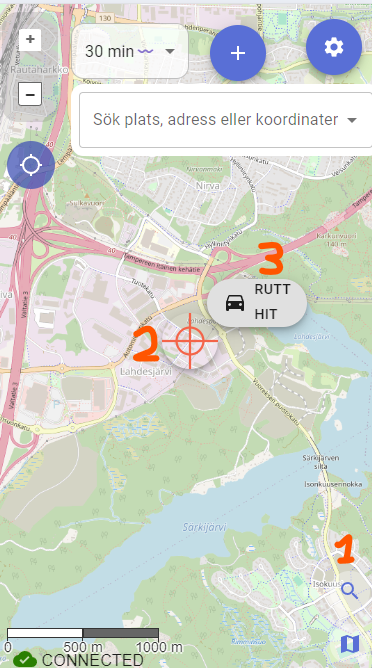
Word typed in search field is matched from all visible fields: patrol name, extra info, observation type, and time.
Search is narrowing (AND type). Multiple words mean all words must be found.
For example dog item lists only entries containing both words.
Importance filter
Importance filter can hide trivial entries and show only relevant ones.
Useful at command post: set filter to Normal or Very significant. Then low-importance entries are removed from map and clutter decreases.
Sorting
List can be sorted for example by:
- Time (newest first or oldest first)
- Patrol name alphabetically
- Area size (areas)
Patrol filters
In Patrols tab you can filter visible patrols by typing start of id. This is especially useful when you want to see only dog patrols.
Area search is OR type
In area and patrol search, multiple terms are combined (OR type):
dog01 car02 shows both. Observation search is narrowing (AND).
white sock returns observations containing both words.
Tail length - visible time window
Tail length setting also affects:
- Which patrols appear in Patrols list (only patrols with location updates inside selected time window)
- Length of downloadable GPX route
On phone: swipe filters
Own patrol filter
If map has too many other patrol markings and they disturb your work, set your own patrol id in filter. Then only your own entries are shown.
Reset filter when you need wider situational view again.
On phone, items can be quickly filtered with swipes:
- Swipe left in list -> selected item is shown alone on map (others hidden)
- Swipe right -> selected item is hidden from map
Reset state: tap top bar twice, or swipe left on top bar.
In browser, same behavior is available with right mouse button.
Tip for dog patrol
Dog patrol often works in a relatively small area, so nearby patrol markings may not disturb work even without filters. Filters still help when area borders busy road or otherwise shared high-traffic location.