Activating and Configuring the Tracker
You should have a Teltonika TMT250 tracker and a SIM card purchased for this purpose in front of you.
If you bought the Elisa tracker package...
Elisa sells Teltonika TMT250 trackers with a subscription-based tracking service. However, this service has SMS reception disabled! Using this service, you cannot configure the tracker for Karttahimmeli use.
You have three plus one options:
- Call Elisa customer service and insist that you want SMS reception enabled on the subscription.
- Terminate the Elisa subscription and get another subscription.
- Temporarily insert another SIM card that can receive SMS into the tracker. Configure the tracker with this SIM and then switch back to the Elisa SIM.
- Configure the tracker using a separate computer program. Sorry, no instructions or support for this method.
You need to disable the SIM card's PIN code request by inserting the SIM into a suitable phone and disabling the PIN code request from the security settings. Telia's prepaid SIM has the PIN code request enabled, so this step is necessary.
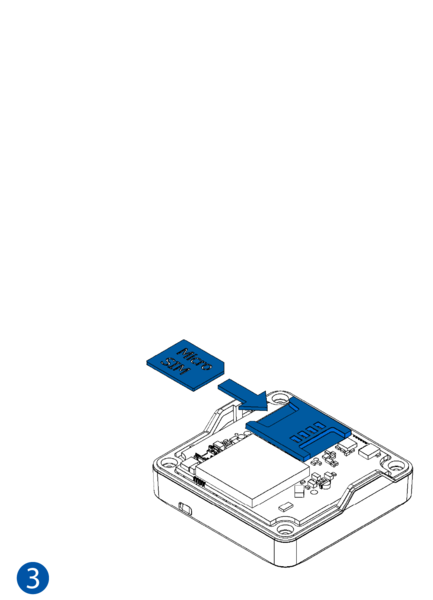
Instructions for installing the SIM card into the tracker can be found on Teltonika's website.
If you install the SIM card yourself, you will need to assemble the device. Do this carefully.
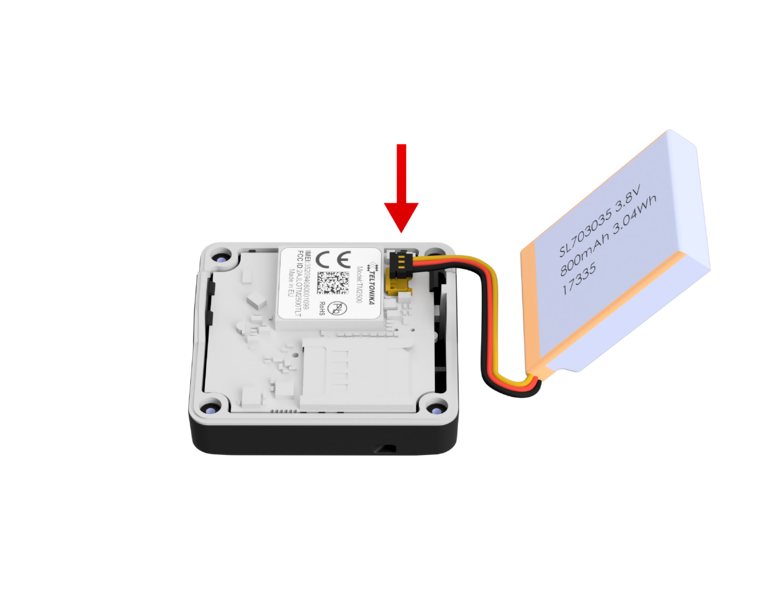
The battery connector fits directly from above and clicks into place evenly. Do not insert it from the side.
Ensure there are no dog hairs in the seal and align the halves precisely. Tighten the screws crosswise fairly tightly so that the seal compresses slightly. You probably can't overtighten with the small screwdriver...
The tracker requires a contract. Send an email.
Using Karttahimmeli is almost free to ensure its use in operations is not hindered by licenses. However, the dog tracker device is a separate device that needs to be configured into the system, and the services required by the trackers incur some costs. Send the device's IMEI address and information about the association you work with to the undersigned (teemu at pirkanmaanpelastuskoirat.fi) by email.
There may be an annual fee for the tracker in the future, which could be around 5-10€ per year.
Sending Configuration SMS
The Teltonika tracker needs to be configured for Karttahimmeli use. The easiest way to do this is via SMS. Three SMS messages need to be sent to the device. The device will respond to each message with "New value" and the parameter string.
If the device does not respond, the settings have not been applied, and the tracker cannot function!!!
Note! The SMS must start with two blank spaces!!
There is a "Copy to clipboard" button on the right side of the message box, which allows you to copy the string so you don't have to type it manually!
The configuration message lines are long. Make sure you copy the entire parameter string!
The settings were last updated on 9.11.2024!!
SMS 1: Server Settings (updated 11.12.2023)
SMS 1:
setparam 2004:bcu.jake.eu;2005:53281;2006:1;2010:0;2001:internet
Note! This message cannot be sent with an iPhone, as it removes the leading spaces if the text contains an Internet address-like string.
SMS 2: General Features (updated 9.11.2024)
This message sets power-saving features, accelerometer, satellites used, etc. The device goes into power-saving mode if there is no movement for five minutes and wakes up on its own when it detects movement. With these settings, you need to shake the tracker a bit to get it started, meaning the marker won't appear on the map by itself if the device is lying on a table.
The power-saving mode is ultra deep sleep, where the device does not send locations while sleeping. However, the battery lasts better if left on overnight, and the device is operational the next day.
If you want the location to be sent even while sleeping once an hour, change the parameter 102 value to 2, i.e., replace 102:4 with 102:2 in the string below.
Update 20.5.2024: The sleep mode exit parameter was incorrect. The correct one is 132:3.
Update 9.11.2024: Added reporting before satellites are found, so the status check shows the device status earlier.
Update 19.9.2025: Changed clock synchronization to always use satellite data when available
SMS 2:
setparam 141:1;1002:1;1000:120;19000:2;19001:3;19002:300;102:4;103:1;114:0;909:0;132:3;109:14;14120:1;14122:2;14110:1;14112:2;50040:2;50050:2;901:0
SMS 3: Tracking Settings (updated 14.1.2024)
Tracking settings suitable for various uses:
- Sleep after 5 minutes of complete stillness
- Wake up 3 seconds after movement
- Location is saved when movement exceeds 25m, direction changes by more than 15 degrees, or speed changes by more than 4km/h.
- Saved locations are sent to the network at least every 20 seconds.
- If there is no movement, the location is sent every 60 seconds.
With these settings, the dog's movements are well recorded, and there won't be an unnecessarily dense point line when traveling by car.
Note! Traveling by car still sends locations quite frequently, so this consumes a lot of battery.
SMS 3:
setparam 10000:3600;10004:1;10005:3600;10050:60;10051:25;10052:15;10053:4;10054:1;10055:20
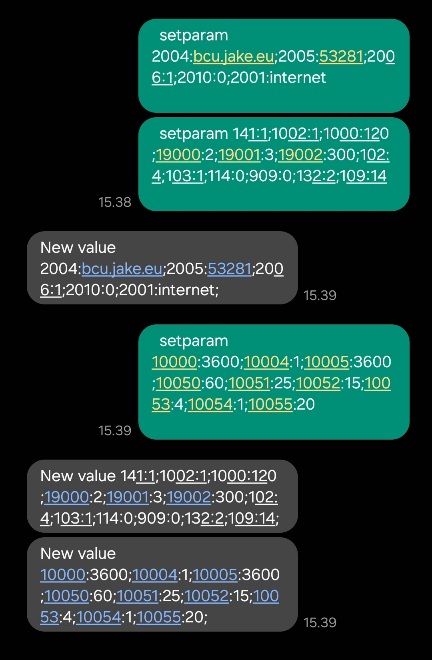
Example of Sending Configuration Messages
Example of sending configuration messages and the responses received. Messages can be sent consecutively. Responses come with a delay, so the image below shows two configuration messages first and then the first response message.
Help with Troubleshooting
If there are problems with the device, it is good to check the following in order:
- Is the battery full, and does the device turn on normally?
- The power button needs to be pressed for a few seconds, and the light changes to green first and then starts flashing other colors. Finally, the light goes off and flashes briefly only once a minute.
- A rapidly flashing red light and immediate shutdown of the device has been encountered once, and the problem was a misaligned battery connector inside the device.
-
The SIM card must also be correctly inserted.
-
Is the subscription active, and are you using the correct phone number?
-
You can try calling the device. When the device is on, you will hear a ringing tone from the phone. When the device is off and you try to call, the network will inform you that the number cannot be reached. This way, you can ensure the number is correct and the subscription is still active.
-
Does the prepaid SIM have a balance, and can the subscription receive SMS?
- By sending the following SMS to the device:
web_connect
the device connects to Teltonika's update server and responds with an SMS saying "web_connect resp: OK" within 1-5 minutes. This is a good way to check if the subscription has data. For example, DNA's prepaid may respond to SMS even if the balance is only a few cents. However, this balance is not enough for data usage, so sometimes this has caused confusion.
If you do not receive any response to the SMS, the balance may be completely depleted, or the subscription may have an SMS reception block. This block has often been encountered with Elisa's purchased subscriptions (Laitenetti M and Elisa tracking). If you suspect this is the problem, insert the SIM into another phone and try sending a message to it. If the message does not arrive, an angry call to customer service will help.
- Have the settings used by Karttahimmeli been reset?
- There are some indications that a tracker purchased from Elisa or Karttaselain is still under remote management, and, for example, a software update might reset the settings. You can check this by sending the following SMS to the device, which asks for the server settings the device is using:
getparam 2004;2005;2006;2010;2001
If the response looks like this, everything is OK:
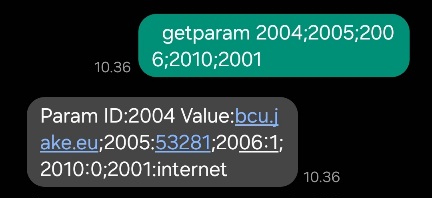
If you receive a message like this, someone has reset the settings to Karttaselain's settings!
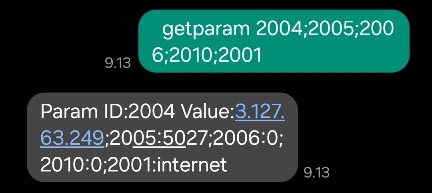
- Is sending the server settings message unsuccessful, i.e., you do not receive a response to all three messages?
- Some phones cannot add two spaces at the beginning of the message, or the phone automatically removes them.
- Sending server settings with an iPhone is not possible! Ask a friend to send the message for you.
- Some phones magically turn the address call.jake.eu into an HTTP address, which is not intended!
-
Some phones do not send traditional SMS messages:
-
The phone's settings have defined the message sending mode as iMessage or "rcs protocol" (Rich Communications Services). Messages must be sent in SMS text message mode. How to change this setting depends on the phone. Here are instructions for some Android phones:
-
Open the Messages app.
- Tap the profile icon on the right side of the search bar.
- Go to Messages settings > Chat features.
- Turn off the Chat features toggle.
-
-
The settings are correct, but the marker does not appear on the map? Downloading the GPS almanac can take up to 12.5 minutes. Leave the device on, for example, on a windowsill or under an open sky.